How to Turn a Handwritten Mind Map Into Something You Can Actually Edit


The whiteboard problem
I love mind maps on paper. The pen moves faster than the cursor. The connections come out messy, and the messiness is the point.
But here's the thing about a paper mind map: it's done the second you put the pen down. You can't drag a node to the left. You can't cut a branch in half. You can't turn a tangent into its own map.
I kept ending up in the same place — a great sketch on the kitchen table, and a complete inability to do anything with it after the photo.
What the canvas is actually for
NoteDex has a thing called Canvas. It's a freeform, infinite board that lives inside a stack. You can drop text blocks anywhere, draw on them, resize them, move them around.
The point isn't to replace the whiteboard. The point is to make the whiteboard editable.
You can add a quick text block, or drop in a full NoteDex card. You can also pull existing cards from any stack into the canvas — which is the part that changed how I think.
The workflow I landed on
I draw the mind map on paper first. Old habit. It works for me.
Then I take a photo of it and open it on my computer.
The image sits there as reference. Underneath, I start dropping quick text blocks for the actual nodes — one block per idea, not one block per word. I use ink to draw on the blocks.

Then I turn on Connector Mode and draw lines between the cards that belong together. NoteDex wires them up automatically.
When a branch gets interesting enough to deserve its own stack, I export the cards from the canvas. They become real NoteDex cards in the current stack. Now they're searchable, linkable, and they show up in the Cards View alongside everything else.
The two features that make it work
First: adding existing cards. The left sidebar lets you pull in cards from any stack, not just the one the canvas is in. That's huge. A mind map is a thinking tool, but the cards are the memory. Mixing the two without copying is the whole game.
Second: the line connectors. A mind map without lines is a list with extra steps. Connector Mode in the canvas toolbar — click one card, click another, done. You can change the colors and thickness in settings, and click a line to delete it. No menu hunting.
The presets, because they matter
NoteDex ships with whiteboard and blackboard presets. White text on dark, dark on light. Small thing, but it changes the feel. A mind map on a blackboard looks like a thinking session. A mind map on a flat white page looks like a school worksheet.
I rotate between them depending on the time of day. Not a productivity hack — just a nicer surface to think on!
When a mind map should stay a mind map
Not every map needs to become a stack. Some are throwaway — a ten-minute sketch to figure out a decision, then the page is done.
The win is being able to tell the difference. If the map is pointing somewhere, if a branch is asking to become its own thing, that's when the canvas earns its keep. You go from "I drew this" to "this is now part of my notes."
Try this today
Open any stack in NoteDex.
Click the lightbulb icon, then "Add New Canvas." Pick the template that looks closest to what you're thinking.
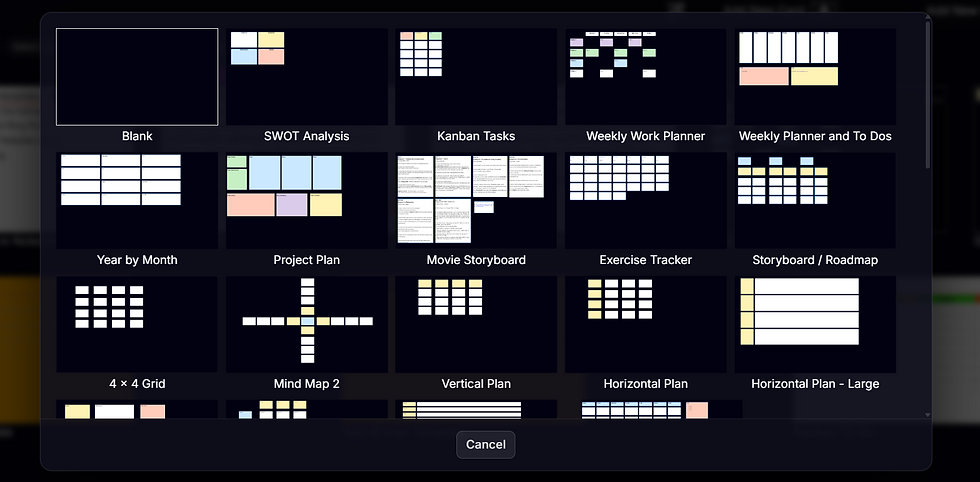
Drop three cards onto it. Connect two of them with the line tool. That's the whole loop.
If a card starts to matter, export it from the canvas menu. It becomes a real card in the stack. Now it's part of your notes, not just your sketch.
Five minutes. That's the whole workflow. Voila your mindmap in NoteDex!