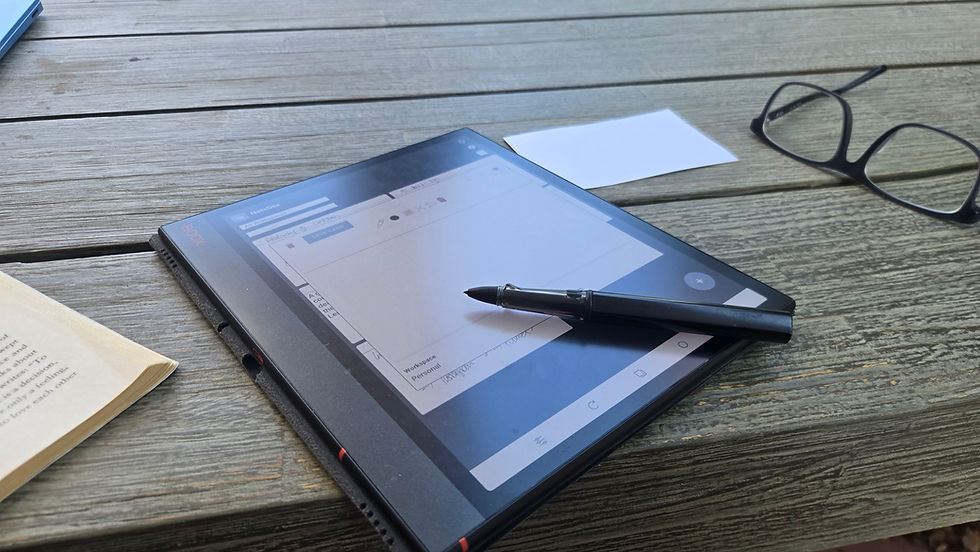
Best handwriting apps for Surface Pro

Updated: Sep 17

I bought a Surface Pro to write by hand. Not to type on a screen, not to draw mandalas, not to play games where you sketch a stick figure and burn down a tree. To write. By hand. On the thing I was already carrying around in my bag.
Six months in I had seven apps. OneNote, which I never opened. Microsoft Whiteboard, which is beautiful and useless for prose. A PDF reader I had forgotten the name of. A mandala app for when I wanted to feel something. A drawing app I downloaded because a YouTuber said it was good. And two apps I had built myself because nothing else did what I actually wanted.
The problem was not finding drawing apps. The problem was that I was looking for drawing apps when what I needed was a writing app. There are six that earn a place on the Surface Pro home screen if you stop pretending you are an illustrator and admit you are someone who thinks with a pen.
Best mandala app for Surface Pro: Spirality
Spirality is not a drawing app. It is a mandala app. If you have ever wanted to spend twenty minutes making a perfect spiral and feel like you meditated, this is that app. You drag your Surface Pen in a direction and the app renders a pattern that looks like you spent an hour on it. You did not. You dragged.
It is not for writing. It is not for notes. It is for the part of you that wants to make a pretty thing and not think about anything else for ten minutes. That part of you is real and it deserves a place on your Surface. Keep it on the second page of your Start menu.
Best free digital notebook on Surface Pro: OneNote
OneNote is the app Microsoft gives you for free and the one you will use the most and like the least. It syncs across every device you own. It accepts a Surface Pen without complaint. It organizes notes into notebooks, sections, and pages in a way that feels intuitive for about a week and then feels like a filing cabinet you have to maintain forever.
You will not love OneNote. You will use it because it is already there and because moving your notes somewhere else feels like a project you do not have time for. That is fine. OneNote is the Honda Civic of note-taking apps. It works. It will not inspire you. It will get you to work.
Best stylus whiteboard for Surface Pro: Microsoft Whiteboard
Whiteboard is what you open when you have a thought and need to see it before you can write it down. Big canvas. Pen colors at the bottom. Line tools. PDF import. Multiple cursors so the person on the other end of a Teams call can scribble along with you.
It is not a notebook. It is a thinking surface. Use it for the first five minutes of a meeting. Use it for the diagram you have to draw three times before it makes sense. Do not use it for the meeting minutes. Those belong somewhere else.
Best index card notebook on Surface Pro: NoteDex
NoteDex is the only app on this list built around a single constraint. One card. One thought. The card is the size of an index card. The thought is the size of an index card thought. That constraint is the point. Without it, every notebook I have ever owned has become a junk drawer by week three.
You write on the card. You shuffle the deck. You can drag cards into columns for a Kanban view or spread them across a table for an outline. The cards are physical objects on a virtual desk. You can rearrange them by hand because there is a hand in the app. That sounds like a small thing. It is not. It is the difference between a notebook you actually use and a notebook you pretend to use.
I built this app because I needed it and the seven other apps on my Surface were not it. You do not have to build your own. You can just download it.
Best stylus planner on Surface Pro: InkThink
InkThink is to bullet journals what NoteDex is to index cards. Same idea, different shape. Where NoteDex gives you a deck of cards to shuffle, InkThink gives you a calendar page to plan on. The page is real estate. You draw the day the way you would draw it on paper.
It accepts the Surface Pen the way a paper planner accepts a fountain pen. Pressure matters. Strokes matter. The undo button works. There is a monthly view, a weekly view, and a daily view, and you can drop between them without losing the thought you were chasing.
I built this app for the same reason I built NoteDex. The digital planners I tried were either too rigid (everything is a checkbox, nothing is a thought) or too open (blank canvas, no structure, you end up with a page that looks like a toddler got into your notebook). InkThink is the middle. It has structure. It also has room.
Best professional sketching app on Surface Pro: SketchBook Pro
SketchBook is the app you download the day you decide you are going to learn to draw. It has every brush, every layer, every pressure curve a working illustrator would expect. The interface gets out of your way once you have set up your workspace. It is free. It is from Autodesk, which means it will not be free forever, so install it now.
You will use SketchBook for about three weeks. You will draw the same still life from three angles. You will not become an illustrator. You will, however, have an app on your Surface that proves you were serious about it for a moment. That moment is worth keeping the app for.
Six apps, one Surface, no more junk drawer
If you actually use all six of these you will never need another app. Spirality for the part of you that wants a mandala. OneNote for the part of you that wants a notebook. Whiteboard for the part of you that wants to think out loud. NoteDex for the part of you that has one thought and wants to keep it. InkThink for the part of you that has a day and wants to plan it. SketchBook for the part of you that wants to draw.
Six apps is one more than I needed and one less than I had when I started. The Surface Pro is not an iPad. It is not a Wacom tablet. It is a Windows computer that happens to have a pen on it. Pick apps that respect the pen. Delete the rest.
What to do this week
Pick one. Open it. Write one thing down. If the thing stays written, keep the app. If it does not, delete it and try the next one. By next week you will have two apps on your home screen and a Surface that feels like yours.